Logging in with the BA-Secure app

You can use the BA-Secure app to confirm your login. The app provides additional protection for your account together with your password.

What the BA-Secure app is used for

When you log in to the Federal Employment Agency portal, you must confirm your login via a second factor. The second factor provides additional protection for your account together with your password.

The Federal Employment Agency has developed the BA-Secure app for this purpose. It acts as a second factor for logging in to the portal using your user name / e-mail address and password. You can use the app to confirm your login to the portal on your smartphone or tablet and prevent unauthorised access.
 

Technical requirements

To use the BA-Secure app, you need

  • a smartphone or a tablet,
  • Android version 11 or higher, or iOS version 15 or higher,
  • an Internet connection.

Step-by-step instructions

Tipp:Note: In these step-by-step instructions, we use the term ‘smartphone’ for ease of reading. This term refers to both smartphones and tablets.

Install the app

Install the BA-Secure app on your smartphone from the official app store:

Register an account or log in

Please register a new account if you do not already have one.

Log in to the Federal Employment Agency portal using your user name / e-mail address and password. If you do not yet have a second factor, you will need to set one up after logging in.

If you have already set up a second factor, you can configure the BA-Secure app in your account settings. To do this, select: ‘Setting up, modifying or deleting a second factor (BA-Secure app, TOTP)´..

Wichtig:Important: You need a smartphone with the BA-Secure app – even if you are logged in on a computer. You can install it in advance via the App Store or during the setup process. 

Set up the BA-Secure app

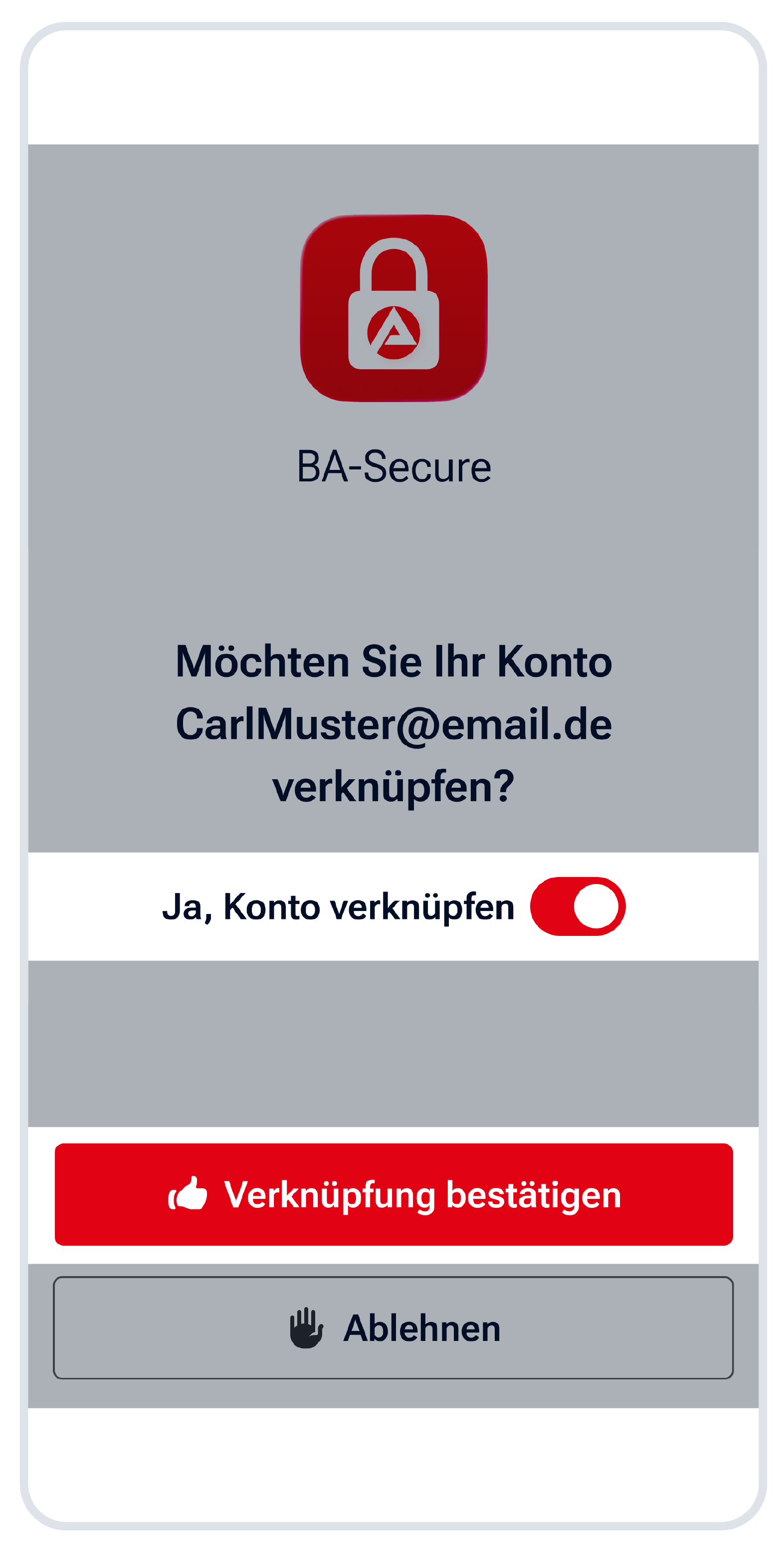
Select the ‘Open BA-Secure app’ option if you are logged in via your smartphone. Otherwise, scan the QR code with your smartphone. You can now link your account in the app::

  • The app will display the e-mail address of the account you are linking.
  • Confirm that you wish to link the account. You can then continue the setup process by selecting the ‘Confirm request’ button.
  • The app uses the same technology you use to unlock your smartphone: for example, a face scan, your fingerprint, or your smartphone PIN.

You will be notified in the app and on the portal whether the link was successful.

Tipp:Note: The app is only linked to your current device. For more security, you can set up an additional second factor. For more details, please visit: TOTP: Second factor for greater security.

Aktivieren Sie den Schalter bei „Ja, Konto verknüpfen“ und bestätigen Sie die Eingabe mit dem Button „Verknüpfung bestätigen“.

Use the app the next time you log in

You can use the confirmation via the BA-Secure app the next time you log in. You will need the app or another second factor every time you log in.

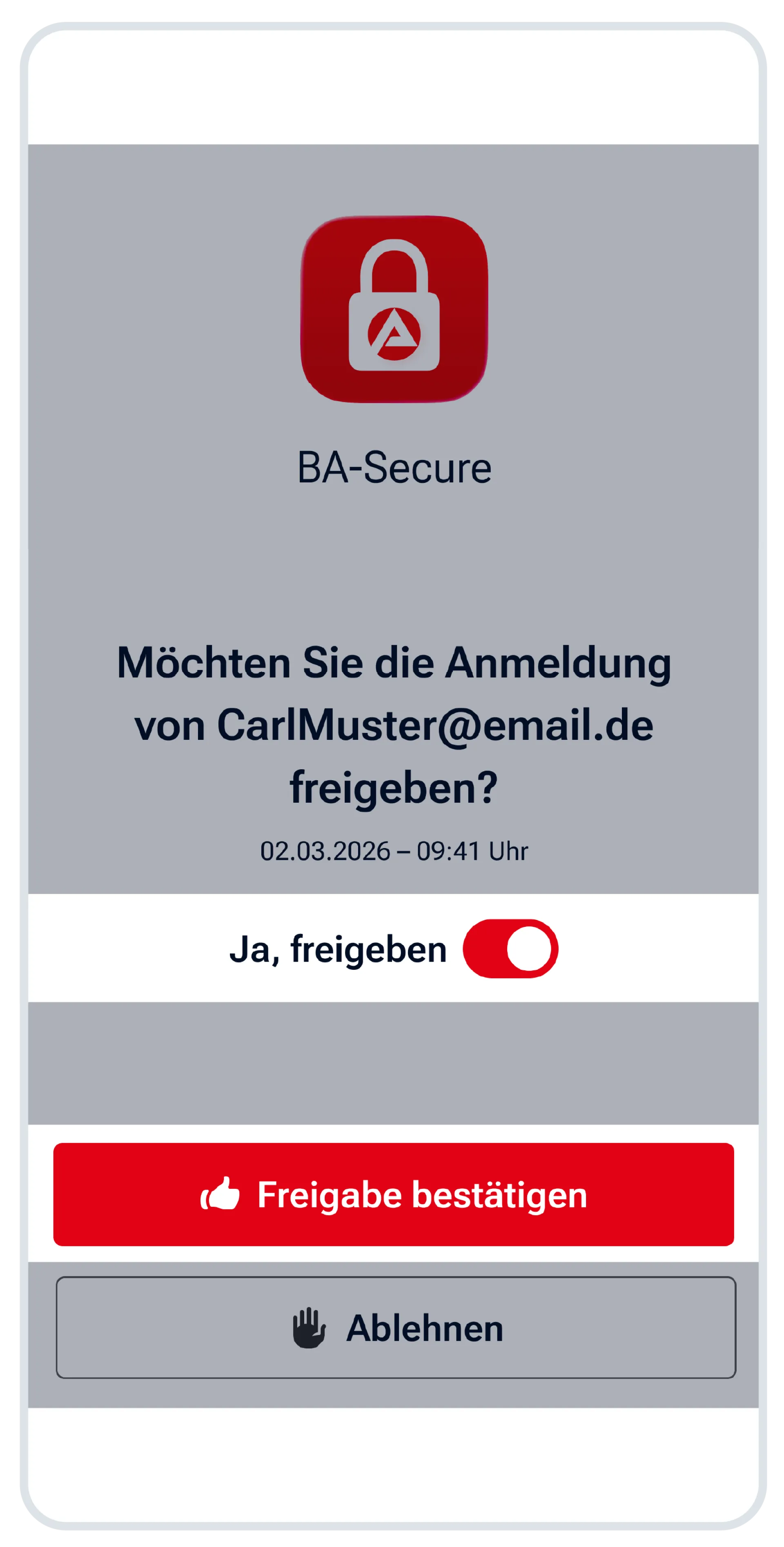
Here’s how to proceed: Enter your user name / e-mail address and your password. You must then confirm your login in the BA-Secure app. You have 4 minutes to confirm. You will need the app or another second factor every time you log in. 

Aktivieren Sie den Schalter neben „Ja, freigeben“ und bestätigen Sie Ihre Anmeldung mit dem Button „Freigabe bestätigen“.

Confidence level

Logging in using your user name or e-mail address, combined with a password and the BA-Secure app, is limited to certain functions. Currently, you can only achieve an even higher confidence level by using the BundID.

Answers to frequently asked questions

You must agree to the login or the linking of your account. To do this, activate the slider next to ’Yes, approve’ or ‘Yes, link account’. Only then can you confirm the request.

Check in the BA-Secure app to see if the account has been successfully linked.

If you log in with a BundID or passkey, you can set up the BA-Secure app again in your account settings.

If you have no other login option, technical support can assist you by phone.. 

How to reach us

Sie können die App nur von Ihrem Konto entfernen, wenn Sie eine andere Anmeldeoption eingerichtet haben: BundID, Passkey oder TOTP. Sie können diese Anmeldeoptionen in den Kontoeinstellungen auswählen. Dort können Sie auch die BA-Secure App mit einem neuen Smartphone einrichten.

Falls Sie Probleme mit der BA-Secure App haben, hilft Ihnen der technische Support telefonisch unter 0800 4 555501 (gebührenfrei).