Technical requirements
To use the TOTP method, you need a device that supports an authenticator app. You can use an authenticator app on your computer, smartphone or tablet.
The TOTP method (technical term: time-based one-time password) protects your data very effectively, because a temporarily generated code is requested in addition to your password.
To use the TOTP method, you need a device that supports an authenticator app. You can use an authenticator app on your computer, smartphone or tablet.
For the TOTP method, you need a separate authenticator app or a password manager with TOTP support on your device.
Wichtig:Note: Please make sure to only download trustworthy apps.
You can use any authenticator app that generates a 6-digit code. The Federal Employment Agency has had good experiences with the free apps ‘Google Authenticator’ and ‘Ente Auth 2FA Authenticator’.
Alternatively, you can use the BA-Secure App.


The authenticator app generates a new 6-digit code every 30 seconds.
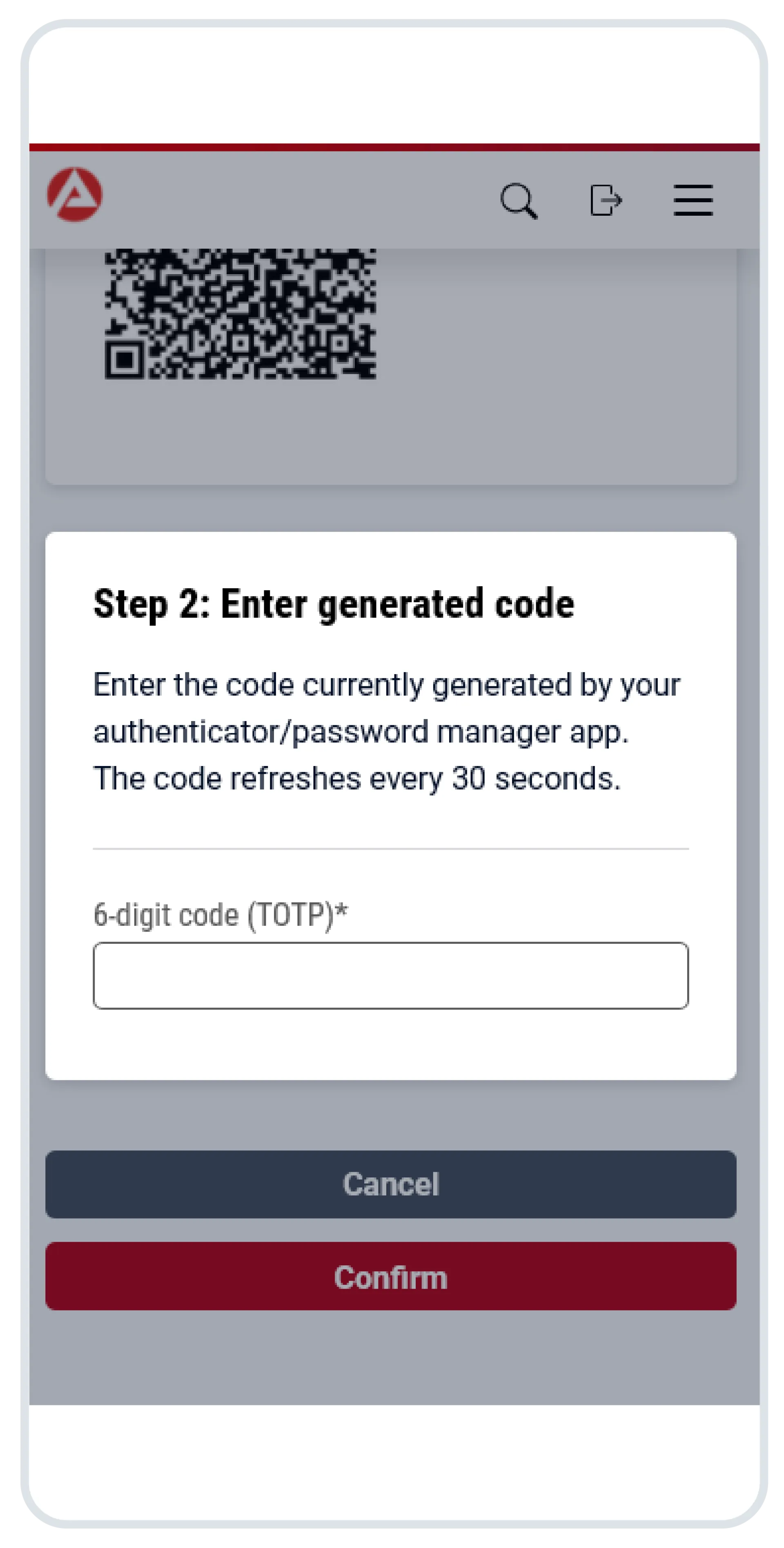
The authenticator app is now required for every login with your user name /e-mail address and password and must therefore not be deleted.
Wichtig:Please note that due to technical modifications, the video may look slightly different on arbeitsagentur.de compared to the app. This does not affect the procedure itself.
Logging in with your user name / e-mail address in combination with your password and TOTP grants you access to the basic functions of the online portal, but is limited to certain functions.
If you are able to log in via the BA-Secure App (available in German only at the moment), the BundID or a passkey, you can set up TOTP in your account settings again.
If you do not have any other login options, you will need to contact technical support. Technical support will then guide you through the process.
For security reasons, you cannot deactivate or delete the second factor yourself once it has been set up. You can set up a new second factor, for example when changing devices, in your account settings.
The following error scenarios could be present here:
If you have problems setting up the login option with a second factor (TOTP), you can contact our technical support.
Wichtig:Important: If you have any questions or problems with your authenticator app, please contact the respective provider. Unfortunately, the Federal Employment Agency cannot assist you with this.