To use the passkey method, you need a device that supports passkeys. Depending on the operating system and device, the passkey is either linked to your device or can be used on multiple devices via the cloud.
Secure account login with passkey
By setting up a passkey, biometric data such as fingerprint or facial recognition on your smartphone can be used to log in.
Technical requirements
Step-by-step instructions
step 1 of 5: Login
• Log in to the online portal with your user name / e-mail address and password.
• Select ‘Setting up a passkey’
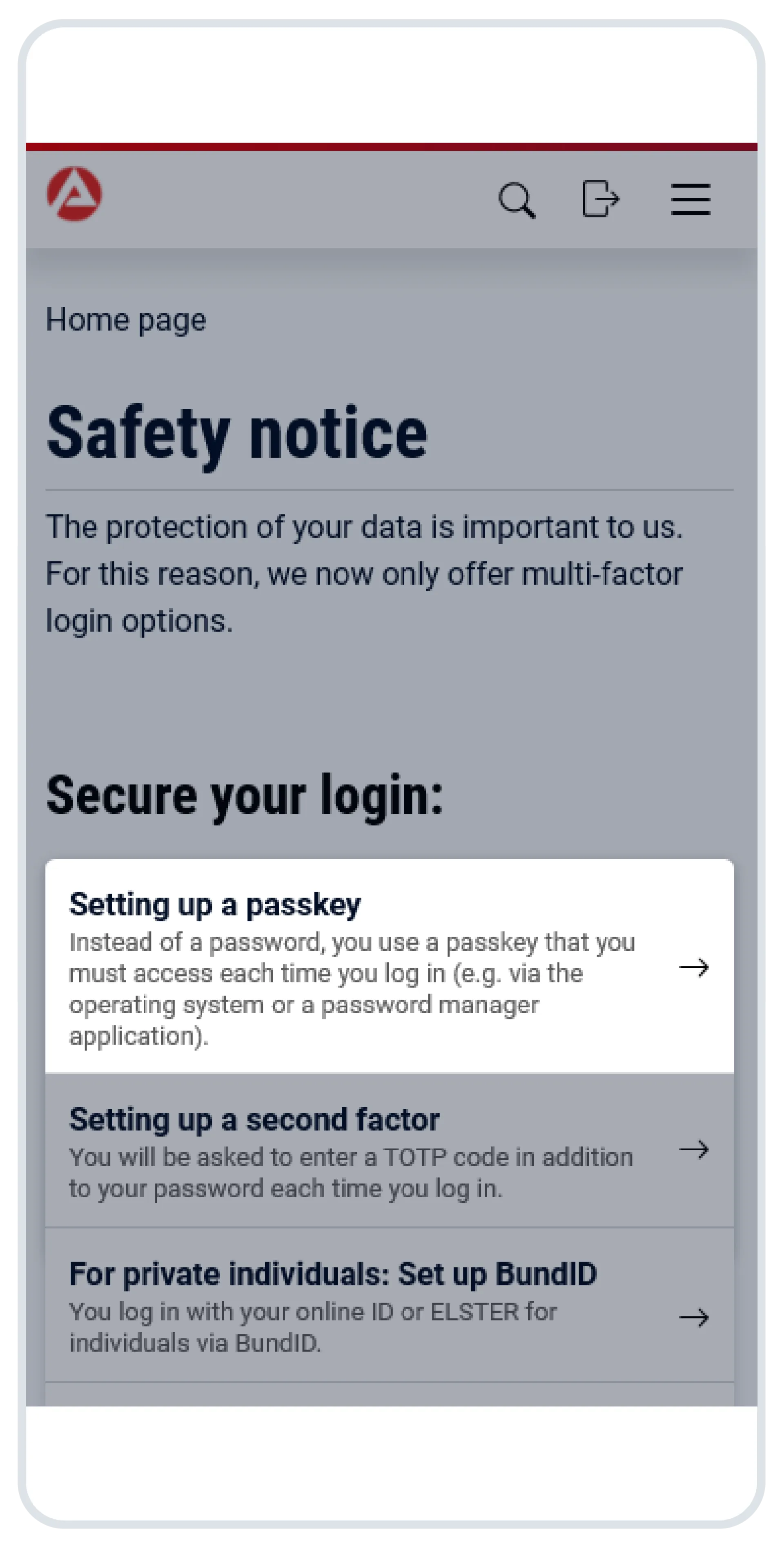
step 2 of 5: Create passkey
• Assign any name to the passkey
• Select ‘Create passkey’
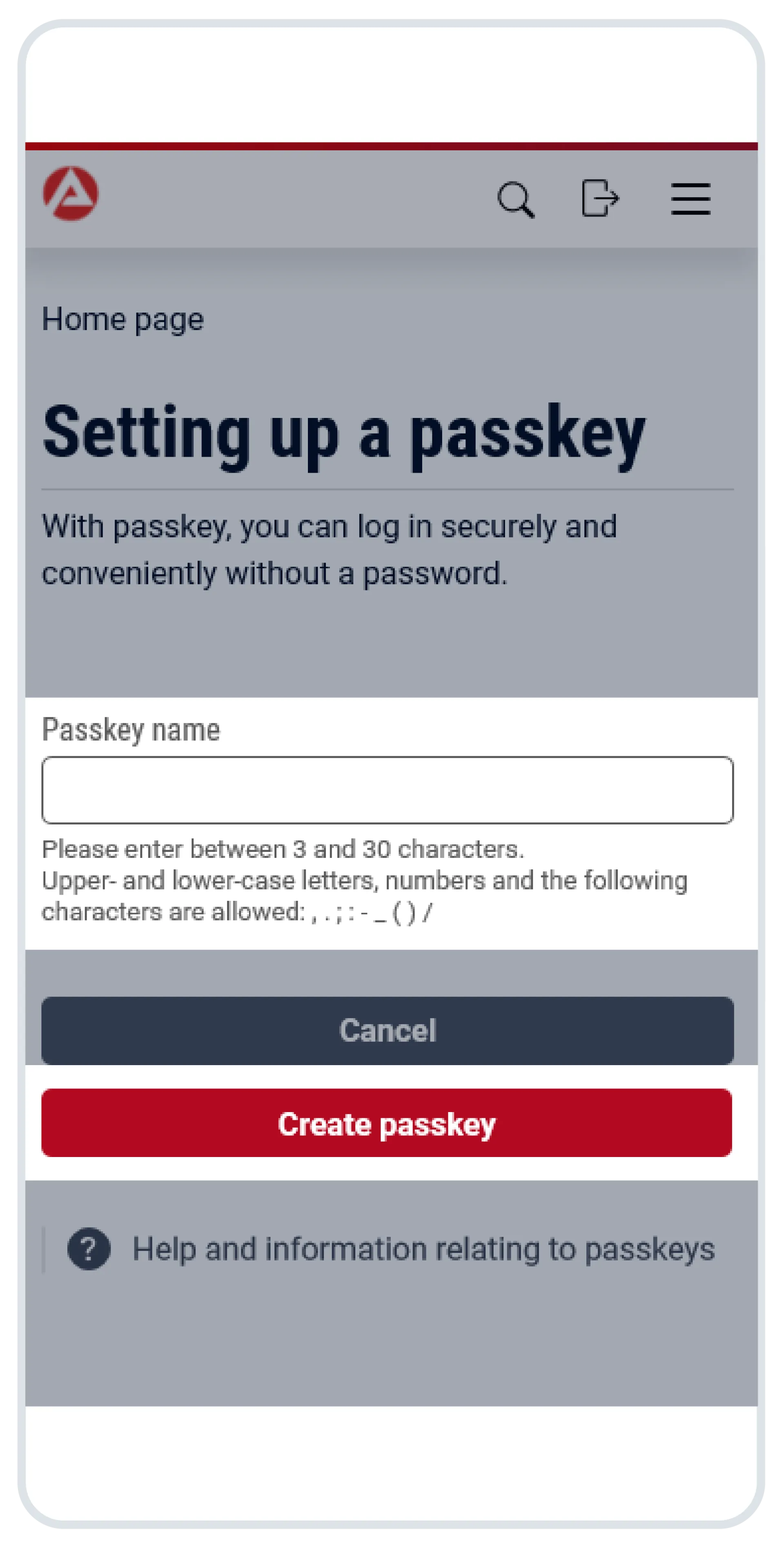
step 3 of 5: Finalise setup
• Follow the instructions on your device
• Select ‘Continue’ after successful confirmation in the online portal
Note: The following is an excerpt of operating-system-specific information about possible platforms as examples (purely illustrative, not a recommendation). Please check the relevant information from your device-specific provider:
Smartphone
Setting up a passkey on your smartphone with the iOS operating system
Setting up a passkey on your smartphone with the Android operating system
Desktop
Setting up a passkey on your computer with the MacOS operating system
Setting up a passkey on your computer with the Windows operating system
step 4 of 5: Successful confirmation and setup of additional factors
Once you have successfully set up your passkey, you will receive a confirmation. To ensure the security of your online profile, you must either delete your previous password immediately and permanently or secure it with a second factor. For more information on the various second factors, see the pages Logging in with the BA-Secure app and TOTP: Second factor for enhanced security.
step 5 of 5: Managing the passkey
Passkeys can be set up, renamed and removed in the logged-in area under ‘Account settings’.
Video tutorial
Please note that due to technical modifications, the video may look slightly different on arbeitsagentur.de compared to the app. This does not affect the procedure itself.
Confidence level
The confidence level describes the security level achieved by logging in with a passkey. It determines which functions of the Federal Employment Agency's portal you can use. Choosing the passkey procedure enables basic registration.
Benefits of using the passkey method
- positiv:Password-free login
- positiv:Quick and convenient via biometrics
- positiv:High level of protection through device security
Answers to frequently asked questions
You can manage and delete the passkeys you have set up at any time in your account settings.
Manage passkeys: To manage your passkeys, click on ‘Account settings’ in your account profile and then select ‘Manage passkeys’ in the ‘Federal Employment Agency account’ section. You can then edit the desired passkey by clicking on the pencil icon, for example to rename it.
Delete a passkey: To delete the passkey, click on the trash bin icon. Please note that a second factor is mandatory. If you delete the passkey, you must set up either the login option via BundID or the user name / password login option in combination with TOTP so that you can log in to your account.
If you are unable to set up a passkey on your device, you might want to contact the manufacturer of your device such as Apple, Samsung oder Microsoft (examples only, no recommendations).
Other options include logging in with a user name/e-mail address in combination with a second factor (TOTP) or "BundID".
If you have other ways to access your account with the Federal Employment Agency, please remove your passkeys from your account as described in the answer to the question "How can I manage and delete the passkeys I have set up?".
If you can no longer log in to your account, you can contact our technical support.
If you have forgotten your password, your passkey will remain valid. For more information on resetting your password, please visit the page: Login and account: What can I do if I have forgotten my password?
You can store a maximum of 10 passkeys in your account.
Yes, setting up passkeys in your account is free of charge.