An account and a profile are required to use a wide range of our online services. With your account, you can take care of your private and business matters centrally, for example job searches, child benefit or job offers for companies.
In addition to an account, a profile is usually also required. For example, if you want to retrieve official notifications from a Job Centre digitally, you need the ‘Employment agency / Job Centre’ profile.
Tipp:Note on online communication: To receive digital applications and documents such as official notifications, letters and supporting documents in your account and to be able to communicate with our employees, please activate the online communication function in your profile. This also applies to customers who have already activated this today.
How do I create a profile in my account?
For private individuals
If you have not yet worked with us, you can create your own profile after registering a personal account. You will be guided through the process step by step. Simply start the desired online service.
You can find out how to create an account or a profile in these instructions: In wenigen Schritten zum Konto/Profil (‘Your account/profile is just a few steps away’ – available in German only).
If you have already been in contact with us, you will receive an activation code by post after entering and confirming your data. You can then use this activation code (including instructions) to activate the desired profile and access the existing data and records (where legally permissible).
For companies
To create a profile for your company for the first time, please create a personal account first and then contact our Employer Service. You will then receive an activation code with which you can create a company profile. You will automatically be assigned the role of ‘company administrator’.
As a company administrator, you can have employees act as authorised representatives by sending them an activation code. For more information, please visit the following page: Managing the accounts of authorised representatives more easily (available in German only).
You can find out how to create an account or a profile in these instructions: In wenigen Schritten zum Konto/Profil (‘Your account/profile is just a few steps away’ – available in German only)
The profile at a glance
This section gives you an overview of the changes using the example of a private profile.
Wichtig:Note: Depending on the profile type (private individual / company / partner) and whether a customer number has already been assigned to the profile, different functions are available to you.
Profile switching, profile and account management
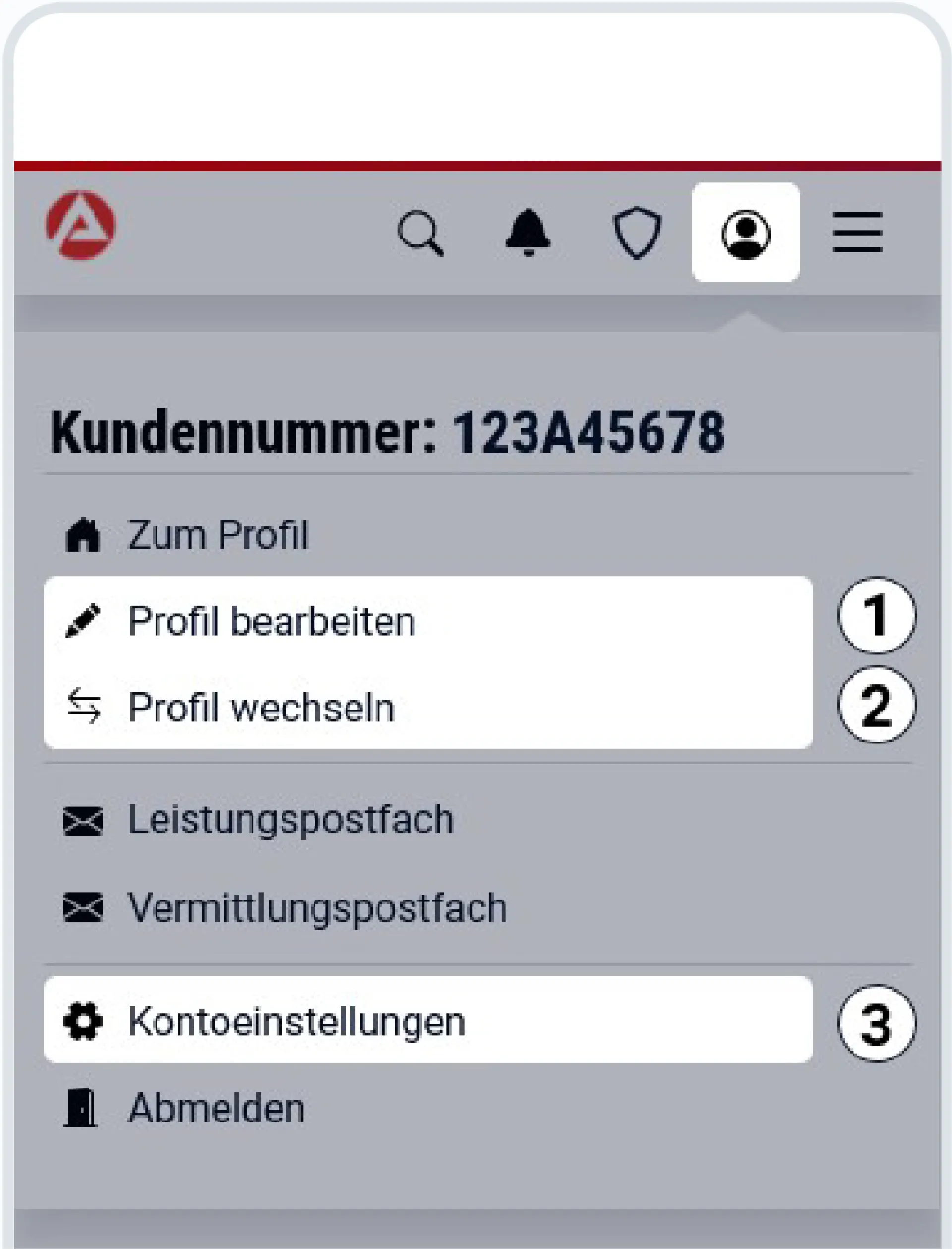
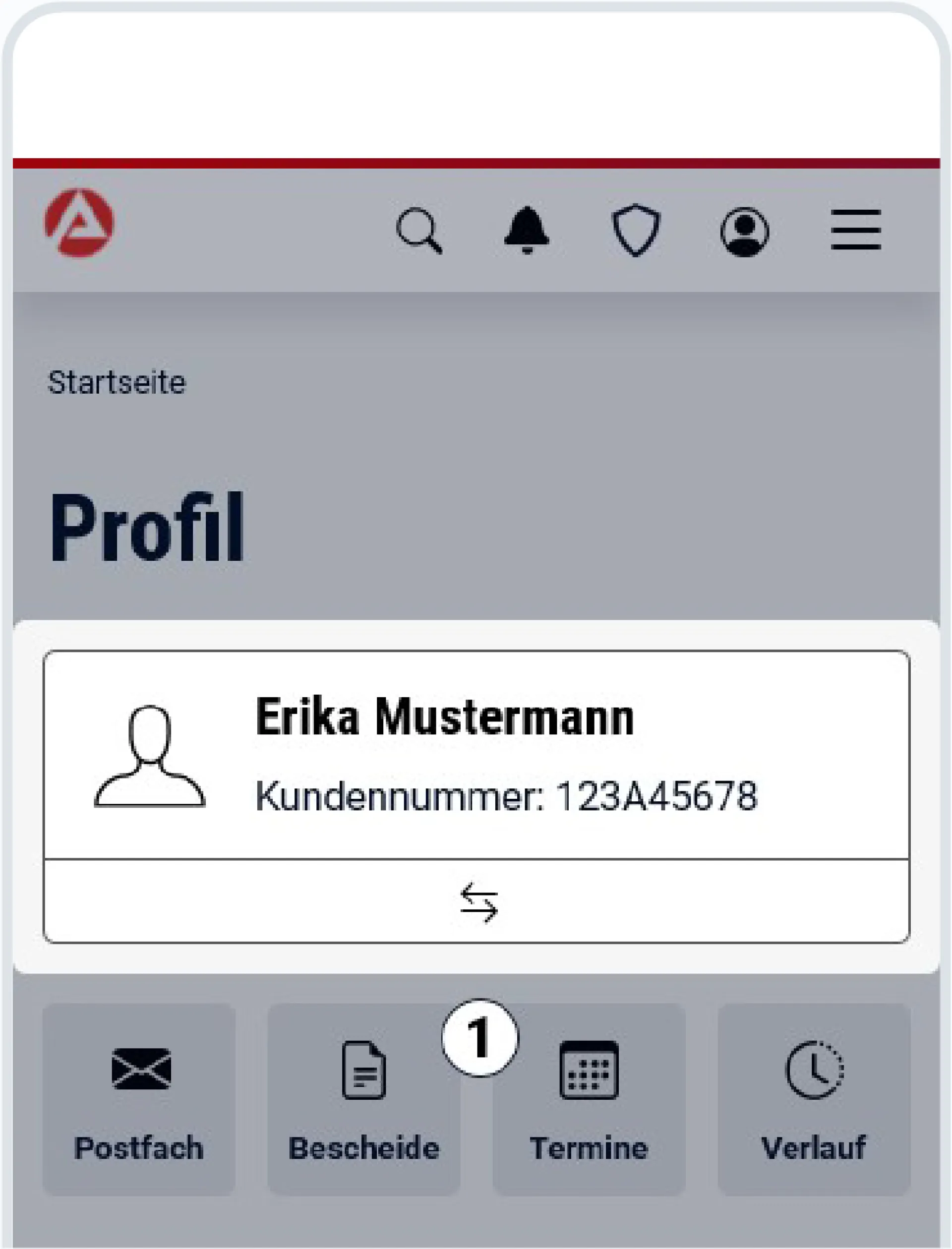
You can switch between your profiles via the “Profile” menu or the profile interface. You can create a new profile under "Switch profile".
With the introduction of profiles, the former menu item "Data and settings" has also been split up. A distinction is now made between the profile settings "Manage profile" and the "Account settings".
Figure 1: Profile switching, profile and account management via the “Profile” menu (mobile view).
Figure 2: Switch profile via the profile interface (mobile view).
Profile-related online services
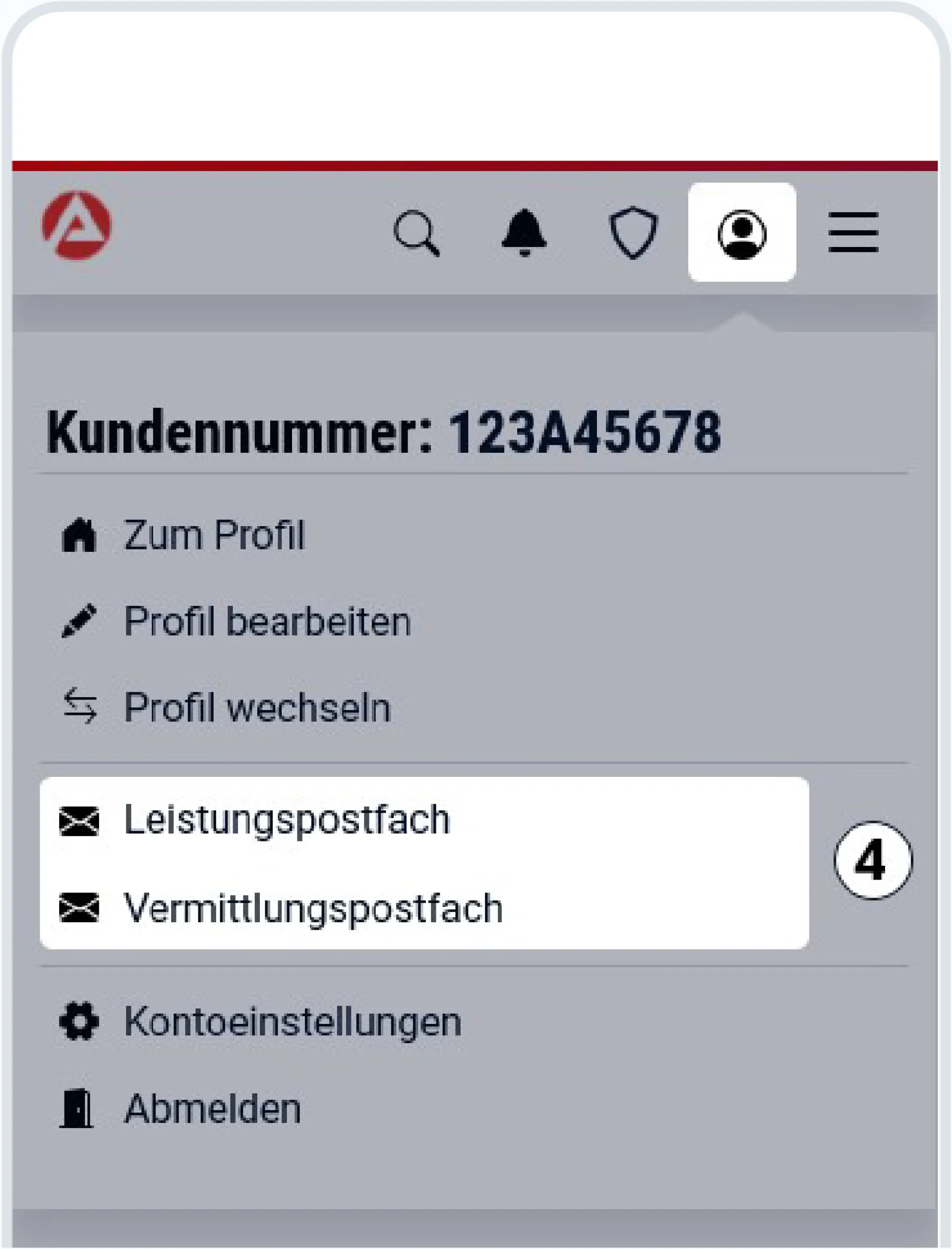
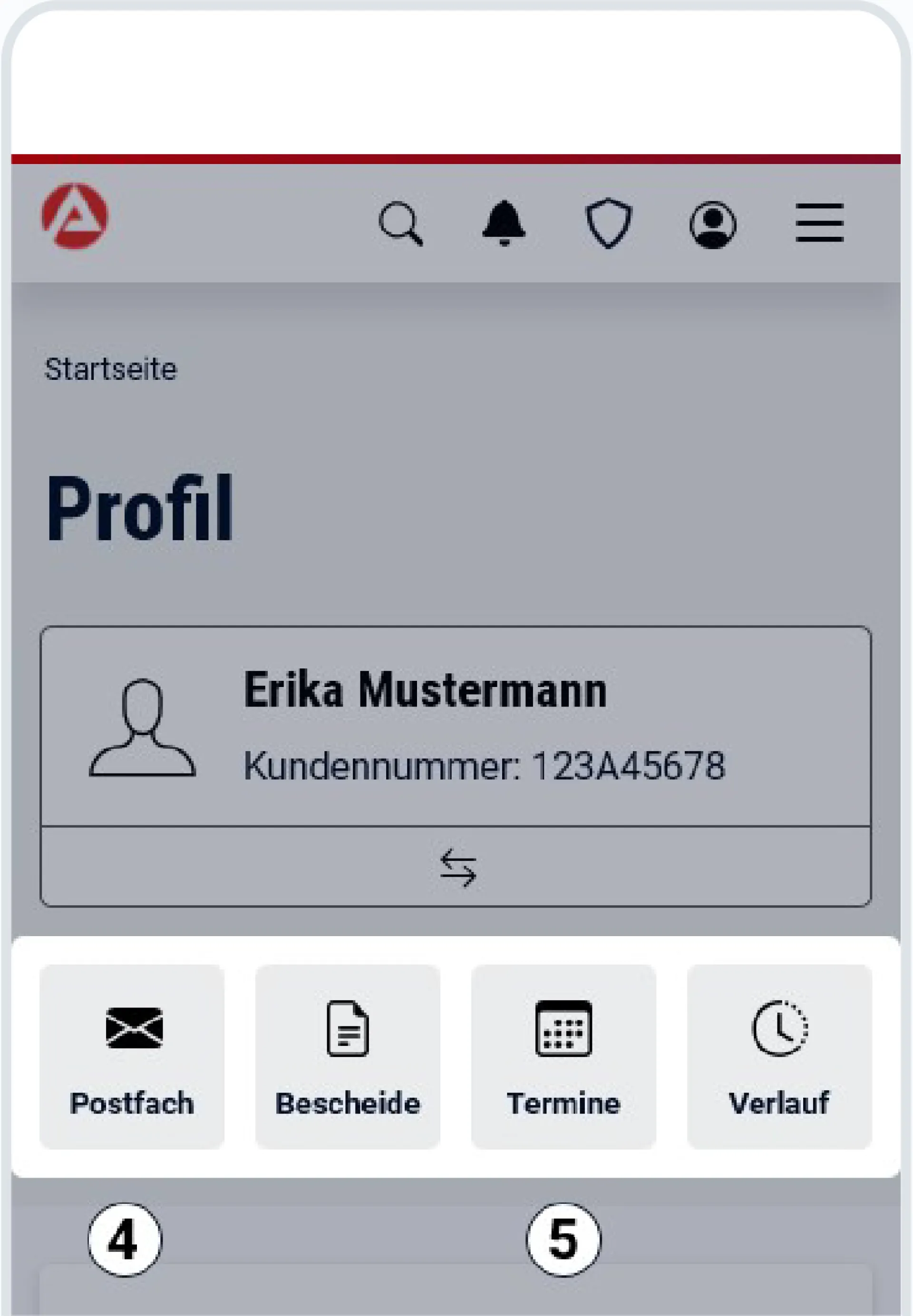
If you have activated online communication for your profile, you can access your mailbox either directly via the ‘Profile’ menu or via your profile interface. Other online services and functions such as ‘Official notifications’, ‘Appointments’ and ‘History’ can be accessed directly via the respective profile interface.
Figure 3: Functions and online services – mailboxes via the “Profile” menu (mobile view).
Figure 4: Functions and online services – mailboxes, official notifications, appointments, history via the profile interface (mobile view).
Answers to frequently asked questions
To register a personal account, all you need is your own e-mail address and a password that is secured with a second factor. Note: You can also use your “BundID” account to log in/register. For more information about this, please visit the page The "BundID": secure access to all online services.
You will then receive an e-mail with your current user name.
Different profiles are required to use the online services. Basically, the following profiles can be used for different purposes:
Employment agency / Job centre (private and business)
Family Benefits Office (private)
Company (business)
The online service you have selected determines which profile is required. If the required profile does not yet exist, the system will automatically suggest that you create the required profile. You can switch between profiles in your account at any time.
If you have already been in contact with us, you will receive an activation code by post after entering and confirming your data. You can then use this activation code (including instructions) to activate the desired profile and access the existing data and records (where legally permissible).
You need the activation code to create a profile. To place a profile (e.g. a company profile) in your account, log in (see above). Select the desired login type. After logging in, click on "Profile" and then on "Switch profile". You then have the option of entering an activation code and creating the profile (possibly with an intermediate step by clicking on "Create profile").
To receive digital applications and documents such as official notifications, letters and supporting documents in your account and to be able to communicate with our employees, please activate the online communication function in your profile. This also applies to customers who already activated this function before 22 June 2024.
To activate, log in and click on "Profile" > "Edit profile" > "Communication options" > "Online communication". You can activate online communication by clicking on the greyed-out button.
No, customers each need their own personal account with their own e-mail address as a user name. A married couple, each with their own customer number, therefore also needs two accounts with personal profiles. You can take care of matters relating to your children (supplementary child allowance/child benefit) via your personal account with additional Family Benefits Office profiles.
You can delete your account yourself by clicking on "Profile", "Account settings" and then in the "Employment agency account" section on "Delete account".
Photo credits
Note regarding the use of images: Further information on copyright and trademark protection can be found in our Imprint.